 Hotline
Support
Set up Hotline
You create one Shortcuts automation that sends notifications to Hotline. Hotline's channels then decide what rings.
- Open Hotline and allow Alarms when asked.
- Open Shortcuts → Automation → + → Notification, and select every app whose notifications might need to ring, plus Hotline for the setup test and for alarms that ring longer than 15 minutes. Hotline's Shortcuts Setup screen lists the apps your channels use.
- Add the action Send to Hotline and map each of its fields except Sender to the notification's Shortcut Input variable of the same name. Leave Sender empty: for notifications without a sender, such as Hotline's own or Messenger's, reading it stops the automation.
- Back in Hotline, run the setup test. Tap Send Test Notification, then leave Hotline or lock your iPhone: Hotline posts a notification 3 seconds later, and your automation sends it back. Hotline checks every field your automation sends. Anything mapped wrong is listed with the fix.
- Give each channel its rules: which apps, which people, which words, and for the Phone app, incoming or missed calls.
To try a real alarm without waiting for someone to message you, select Messages in the automation, give a channel the rule Apps: Messages and Contains: "hotline", then text "hotline test" to your own number and lock your iPhone. This uses one of your free alarms; a channel's Test Alarm button is always free.
Keep the automation to a single Send to Hotline action. Calling another shortcut with Run Shortcut doesn't pass the notification's details along.
Ready-made automation
So you don't have to map any fields, add the ready-made automation from here, on an iPhone with Hotline installed. It comes with Phone and Messages selected, and you add the other apps.
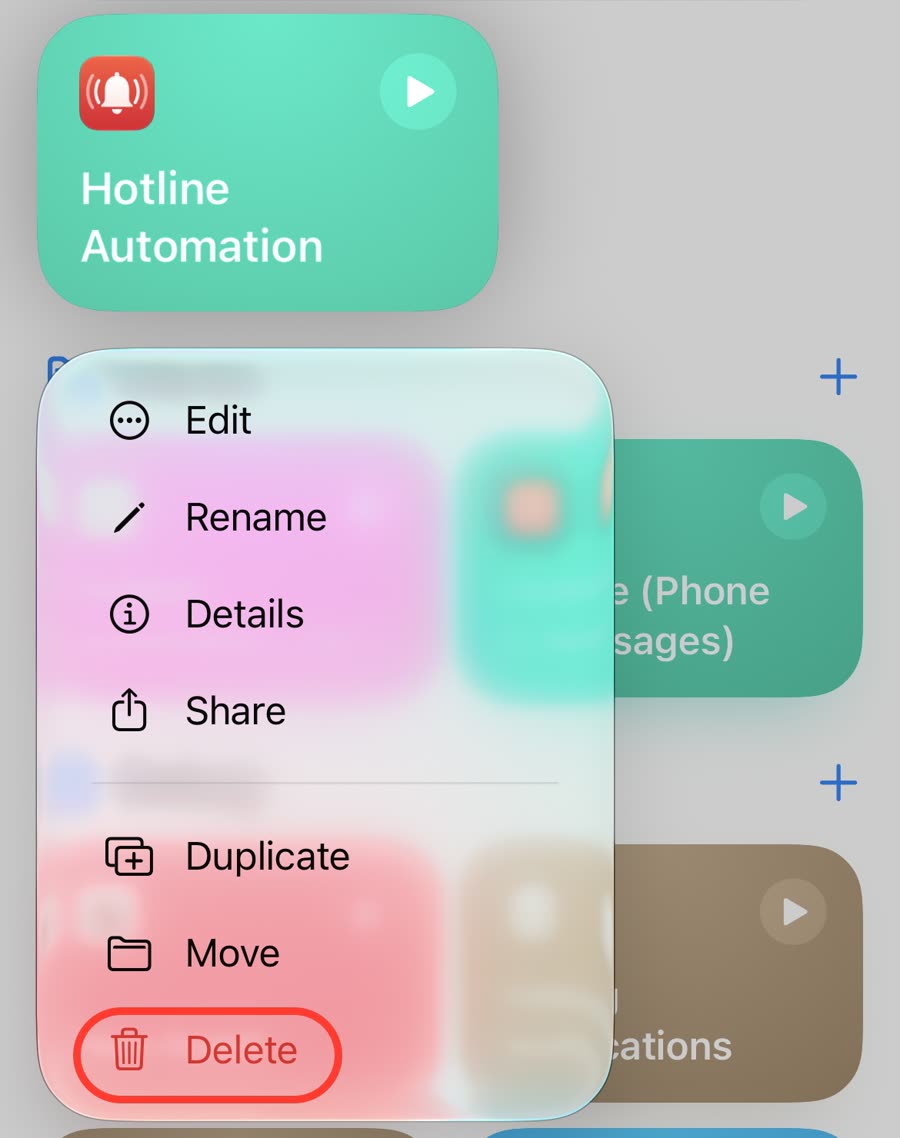
- If you already have a Hotline automation, delete it first, so notifications don't reach Hotline twice: in Shortcuts, long press it and tap Delete.
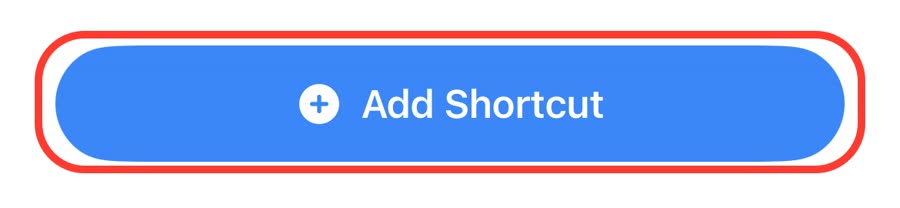
- Open the ready-made automation, then tap Add Shortcut in Shortcuts.
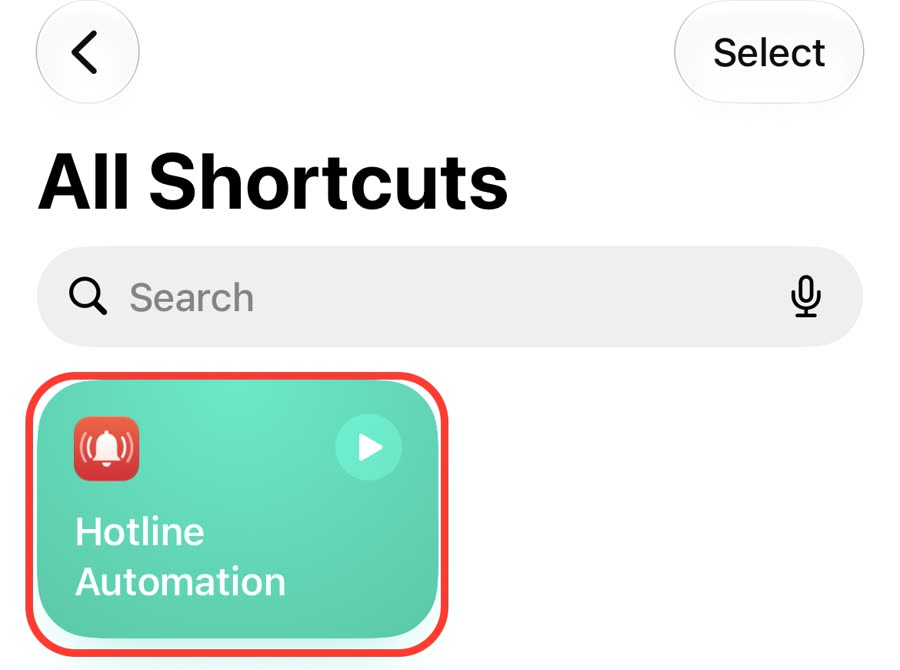
- In All Shortcuts, tap Hotline Automation to open it.
- Tap + after the apps to add any other app you want to ring alarms for.
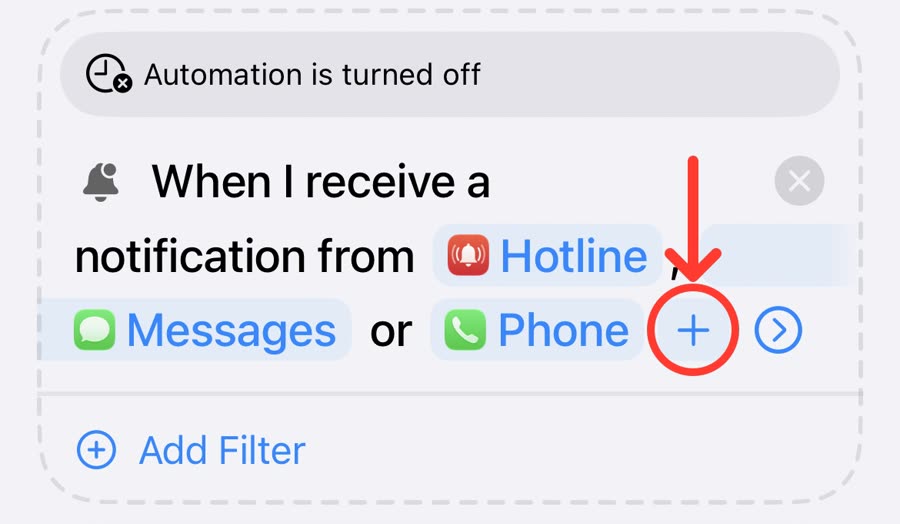
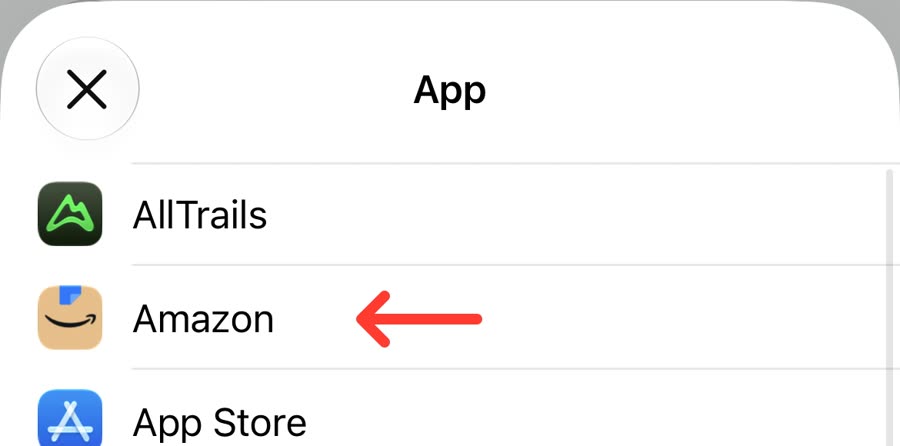
- Pick the app. Tap + again for each other app.
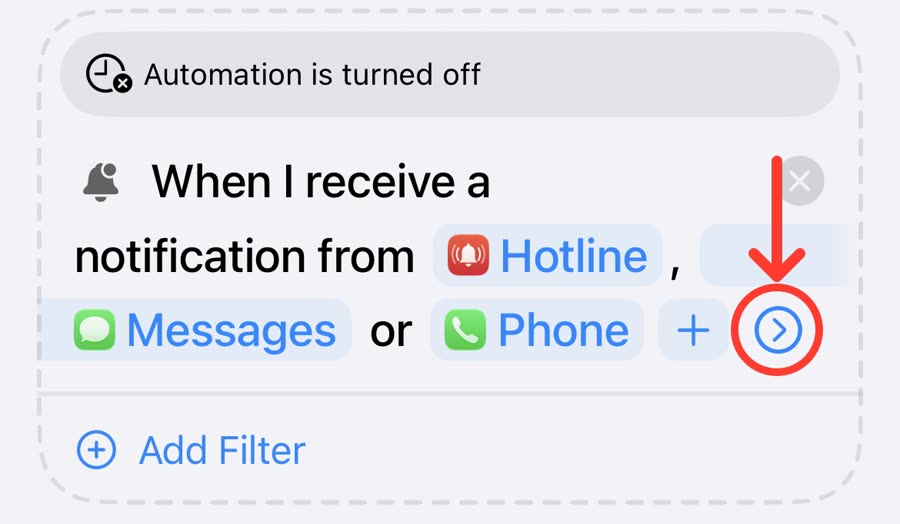
- Tap the arrow at the end of the apps to show the automation's switches.
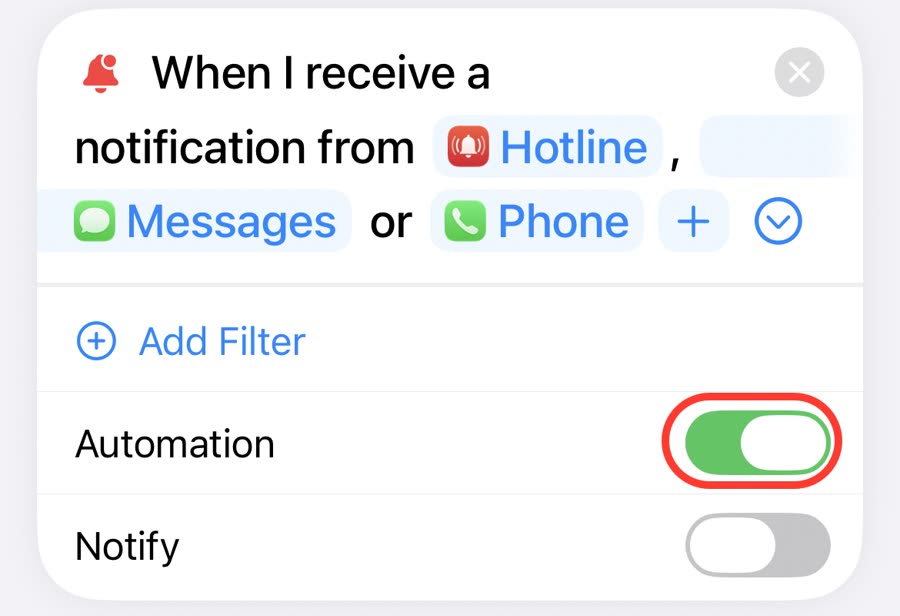
- Turn Automation on. Leave Notify off.
- Back in Hotline, run the setup test.
Calendar alerts
On iOS 27, Hotline can ring for your Calendar events' alerts. Calendar's alerts don't always include the event's details, so with access to your calendar Hotline looks the event up and fills them in. That also lets a channel filter by calendar name, like Work.
- In Hotline, open Settings → Calendar Alerts and tap Allow Calendar Access.
- Select Calendar in your automation.
- Tap Start Test and lock your iPhone. A test alert comes through within a minute or two.
- Tap + and start from the Calendar alerts template.
Calendar access is optional: without it, alerts that include their details still ring.
Rules
A notification rings the first enabled channel, from the top of the list, whose rules all match. Empty rules match anything.
- Apps: the app's name as iOS shows it, such as Messages or Phone.
- From: the sender's name as it appears in the notification, such as a contact name.
- Contains: words in the title, subtitle or body. Turn on Regular expressions for patterns; they're case-insensitive and checked against each field on its own.
- Phone calls: "Incoming" rings while the phone is ringing; "Missed" rings after a missed call.
- Cooldown: ignores repeats from the same person for a while, such as the missed-call alert right after a ringing call.
- Only at certain times: days of the week and a time range, including overnight ranges like 22:00–07:00.
- Only when repeated: rings only when several matching notifications arrive close together, like 3 in 10 minutes.
Tap + to start from a template, such as calls from someone, missed calls, urgent messages, a doorbell or on-call pages. In the History tab, open a notification and tap Create Channel from This to make a channel for notifications like it. Stats, in the History tab, shows what Hotline received and rang over the last week.
In a channel's alarm settings, Ring for up to sets how long the alarm keeps ringing if you don't stop it. iOS stops an alarm's sound after 15 minutes, so for longer ones Hotline rings again every 15 minutes, which needs Hotline selected in your automation. Vibrate first has the alarm only vibrate, for 30 seconds up to 15 minutes, before it rings out loud. Second button puts a button beside Stop: Snooze rings again after the time you choose, and Pause Channel stops the alarm and keeps that channel from ringing for an hour.
Under a channel's settings, its preview shows which recent notifications it would have rung for, and why.
Troubleshooting
The alarm didn't ring
- Open Hotline's History tab. If there's no entry, the automation didn't run: check it's enabled and that the app is selected in it.
- If the entry says No match, no channel's rules matched. Open the channel and check its preview to see which condition failed.
- If it says Skipped (disabled), the matching channel is turned off.
- If it says Skipped (paused), someone tapped Pause Channel on its alarm. The channel rings again after an hour, or tap Resume in the Channels tab.
- If it says Cooldown, the channel rang for the same person recently.
- If it says Failed, open it to see why. The most common cause is that Alarms aren't allowed: go to Settings → Hotline and allow Alarms.
- If it says Alarm already active, the channel's previous alarm was still active, so Hotline didn't stack another.
- If it says Locked (free alarms used), your free alarms are used up. Unlock Hotline Pro in Settings.
The alarm is too quiet, or vibrates but doesn't ring
- Alarms ring at your alarm volume, not your media volume. On iOS 27, set it in Settings › Sounds & Haptics, under Alarms and Timers. On iOS 26, alarms ring at your ringtone volume, also set in Settings › Sounds & Haptics.
- Alarms ring through Silent mode and Focus, so neither makes them quiet.
- If the alarm only vibrates at first, the channel has Vibrate first on: it rings out loud once that time is up. If it never rings, its sound is Silent.
- In a channel, tap Sound and tap a sound to hear it for a few seconds as your alarm will, at your alarm volume.
- With Hotline Pro, a channel's sound can be made louder: in the channel, tap Sound and pick Loud, Louder or Loudest under Boost at the top. Each channel has its own level, for Hotline's tones and imported sounds alike. Louder and Loudest turn the sound up as far as it goes, so they sound harsher. System Default and Silent can't be boosted.
- If there's no vibration, check that Haptics in Settings › Sounds & Haptics isn't set to Never Play.
A channel won't stop ringing
If a channel keeps ringing for something you can't fix right away, open it and set Second button to Pause Channel. Its next alarm then has a Pause Channel button beside Stop, which stops the alarm and keeps the channel quiet for an hour. It comes back on its own, or tap Resume in the Channels tab to bring it back sooner. History lists what arrived meanwhile as Skipped (paused).
The channel says "Never matched" or "Never triggered"
No real notification has matched it yet. Tests don't count. Check the History tab to see whether notifications arrive and which channel they matched.
The wrong channel rings
The first matching channel from the top wins. Drag the more specific channel (for example, "Mom") above broader ones (for example, "All calls").
The alarm shows the channel name instead of the notification
Either "Show notification text" is off for that channel, or the notification had no title or body to show. Check that the Send to Hotline action sets Title and Body to Shortcut Input › Title and Shortcut Input › Body.
Backups and a new iPhone
Move Hotline to a new iPhone or get my channels back
iCloud Backup, in Hotline's Settings, keeps your channels and the sounds you imported for them in iCloud as you change them. It's on unless you turn it off, and needs you to be signed in to iCloud.
On a new iPhone or after reinstalling Hotline, the Channels tab offers Restore from iCloud while you have no channels. To pick a backup yourself, including another device's, go to Settings → Restore from iCloud. Shortcuts that ring your channels keep working after a restore. A backup that hasn't been updated in 180 days is deleted.
History isn't in iCloud. To keep it, use Settings → Export Backup, which asks whether to include History and saves a file you can restore from later. Settings also shows how much space channels, sounds and History take up.
Hotline or what iOS already has
How is this different from Emergency Bypass?
Emergency Bypass is a setting on a contact. It lets that person's calls and texts sound while your iPhone is on Silent or in a Focus. If that's all you need, for one person's calls and texts, Bypass is enough and you don't need Hotline for it.
Hotline is for what Bypass doesn't cover:
- Other apps. A doorbell, a pager, a chat app or a shop's app has no contact to set Bypass on. Hotline can ring for any app you select in your automation.
- Rules. Bypass lets everything from that contact through. A channel can ring only for certain words, only at certain times, or only when something repeats, like 3 calls in 5 minutes.
- An alarm. With Bypass you hear the usual ringtone or text tone. Hotline rings a full-screen alarm with a sound for each channel, and snooze if you want it.
You can use both: Bypass for the people who should always get through, Hotline for the rest. Compare Bypass, Focus allow lists and Shortcuts on Do you need Hotline?.
Can't I do this with a timer or an alarm in Shortcuts?
Yes, and for one simple trigger it works well. Each way has limits:
- Start Timer, set to 1 second, rings at once. It has no snooze and no choice of sound, and every matching notification starts another timer unless your shortcut keeps track of that itself.
- Create Alarm can carry the message in its label. Its time has no seconds, and an alarm set for the current minute rings tomorrow, so it rings up to a minute late. It has no choice of sound either, and each alarm stays in the Clock app until you delete it.
Hotline rings within a few seconds of the notification, with the notification's text on the alarm, a sound for each channel, snooze and alarms that keep ringing for as long as you choose, and leaves nothing behind. Cooldowns and "3 in 10 minutes" need a memory of what has arrived. A shortcut can keep one, in its own storage (new in iOS 27), a file or an app such as Data Jar, with the reading, counting and clearing built around it; Hotline keeps it for you, and its History shows why something did or didn't ring.
If you'd rather keep your own logic in Shortcuts, end your shortcut with the Ring Hotline Channel action, and Hotline only rings the alarm.
Compare the alternatives: Do you need Hotline?. What each timer or alarm does when it rings, tested on an iPhone: Hotline or a timer in Shortcuts.
Send to Hotline or Ring Hotline Channel?
Send to Hotline hands Hotline the whole notification, and your channels' rules decide what rings. Hotline keeps track of cooldowns and repeats, and History lists every notification with what happened to it, including the ones that didn't ring. One automation covers everything.
Ring Hotline Channel rings the channel you name, without checking its rules, cooldown or "Only when repeated": your shortcut has already decided. The channel's alarm settings still apply, a channel that's turned off stays quiet, and each ring counts as an alarm. History shows only what your shortcut sent, and the action takes the notification's title, subtitle and body but not its app or sender.
Neither action fails your shortcut or automation when an alarm can't ring: if your free alarms are used, Alarms aren't allowed or a channel was deleted, the run still succeeds and Hotline sends you a notice with what's wrong and how to fix it, so iOS doesn't back off the automation.
Use Ring Hotline Channel when the decision needs something Hotline can't see, such as another app's data or a trigger that isn't a notification (a time, a place, an NFC tag). You can use both: the notification automation sends to Hotline, and other shortcuts ring channels directly.
Privacy
Is Hotline open source? Can I trust it with my notifications?
Hotline isn't open source, but it collects nothing: there's no account, no analytics and no ads or tracking code, and its App Store label is "Data Not Collected". It only receives notifications from the apps you pick in your Shortcuts automation, and they never leave your iPhone.
The only time Hotline goes online is during setup, to fetch the link that adds its automation to Shortcuts. Nothing about you is sent. Your channels are backed up to your own iCloud unless you turn iCloud Backup off. The details are in the privacy policy.
Free alarms and Hotline Pro
What's free?
Test alarms are always free. Your first 3 real alarms from Shortcuts are free too, so you can check that your setup works. After that, the one-time Hotline Pro purchase ($4.99) unlocks unlimited alarms, your own alarm sounds, Boost and more History. There's no subscription.
Can I use my own alarm sound?
With Hotline Pro, yes. In a channel, tap Sound → Import Sound… and pick any audio file from Files (for example an M4A, MP3 or WAV). Sounds longer than 30 seconds are shortened. The built-in tones are free, and Hotline backups include the sounds your channels use. For an alarm that only vibrates, pick the built-in Silent tone, and tap it in the sound list to check that your iPhone vibrates. If a sound is too quiet, pick a level under Boost at the top of the sound list.
What happens when the free alarms run out?
Hotline never goes silent without telling you. Your channels and automations stay as they are, and Hotline sends you a notification asking you to unlock Hotline Pro. Once you unlock, ringing resumes immediately.
Restore a purchase or share with family
Hotline Pro supports Family Sharing. On a new device, open Hotline → Settings → Restore Purchase.
Refunds
Purchases are handled by Apple. Request a refund at reportaproblem.apple.com.
What's new
Each version's changes are on the What's New page. If something works differently after an update, look there first.
Contact
Still stuck? Email [email protected] with your iOS version and what the History tab shows. Please don't send notification contents you'd rather keep private.